

If you’ve been scanning the changelog hoping for something flashy, save yourself the trouble; there isn’t one big headline feature here. What you get in this release of WordPress 7.1 is less friction: fewer workarounds in the editor, and a smoother experience when more than one person is touching the same piece of content.
This piece covers two things. First, what’s actually new in 7.1 and how to upgrade without losing a weekend to it. Second, an honest look at how WordPress now compares to a hand-built static site, because that question comes up in almost every planning conversation I’ve had this year.
Table of Contents:
- What’s New in WordPress 7.1 and How to Upgrade It Right
- What’s Actually New in WordPress 7.1
- Responsive styling, built into the editor
- Media handling that doesn’t need three plugins
- The admin experience: it’s a productivity tool, not decoration
- Notes: team collaboration without the “final_v7_reallyfinal” problem
- Two new blocks
- The Upgrade, Step by Step
- Back up everything and actually test it
- Test on staging before you touch anything live
- Run the update
- Check theme and plugin compatibility
- Test and troubleshoot in the right order
- Know when to bring in outside help
- Watch the site for at least a week
- WordPress 7.1 vs a Traditional Static Site: The Honest Comparison
- The performance reality check
- Maintenance: you’re paying either way, just in different currency
- So, Which One Should You Actually Choose?
- The Bottom Line
What’s Actually New in WordPress 7.1
Responsive styling, built into the editor
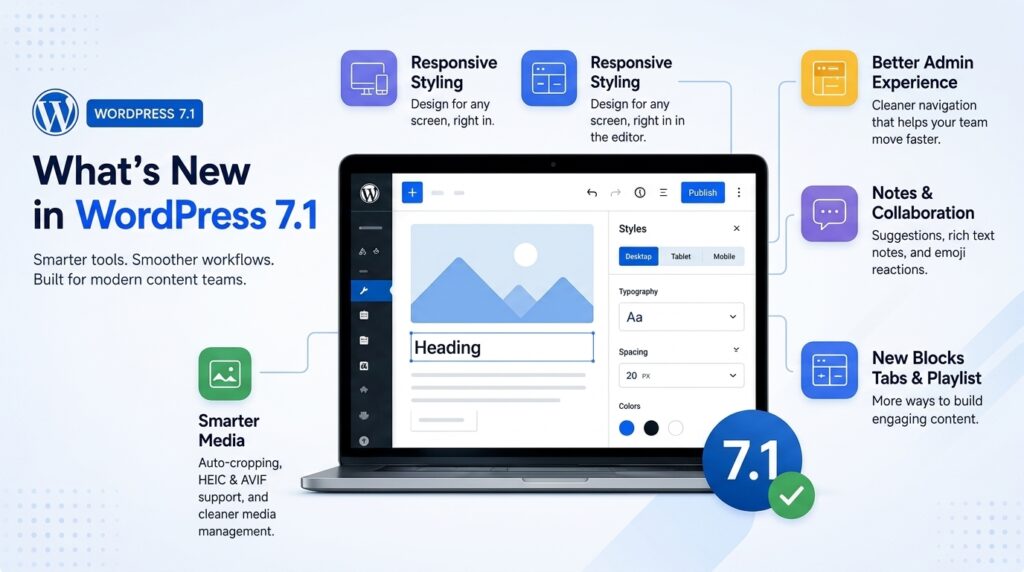
You’re no longer stuck relying purely on CSS to make a page behave on different screens. 7.1 puts native responsive controls directly in the editor, so you can adjust how a layout looks on desktop, tablet, and mobile without leaving the block editor.
There are also built-in controls for interactive states, like hover, focus, and so on, which used to mean digging into custom CSS or a plugin.
The catch: if your theme already has strong opinions baked in (hard-coded breakpoints, custom button behavior), expect some tug-of-war. Test the things people actually click: menus, buttons, forms, product cards, before you assume it’s all smooth.
Media handling that doesn’t need three plugins
Media management gets a real upgrade in the WordPress 7.1 release, with automated cropping and a cleaner interface for managing files. In practice, this usually pays off in two places: your content team moves faster, and your pages get lighter without too many tasks.
It also surfaces edge cases worth checking if you run a CDN that rewrites images, or a plugin that regenerates thumbnails; confirm the new workflow doesn’t quietly create duplicate image sizes or odd crops.
On the plus side, 7.1 adds support for HEIC and AVIF, which means better quality at smaller file sizes, a real win if page speed matters to you (and it should). Images are usually the real reason a “slow WordPress site” feels slow, not the platform itself, but a habit of uploading 6MB photos straight from a camera roll and calling it done. Support for HEIC and AVIF in 7.1 helps here, because it means quality doesn’t have to be traded for file size the way it used to be.
The admin experience: it’s a productivity tool, not decoration
UI polish sounds like a minor detail until you watch a team try to publish thirty pieces of content in a week. Then the dashboard becomes either a tool that gets out of your way or a constant source of friction.
A cleaner navigation structure doesn’t just look nicer; it removes those small blockers that quietly turn a CMS into a bottleneck. A static site skips the admin UI entirely, which is a strength if your only publishing path is Git and a build step, and a real weakness the moment a non-technical stakeholder needs to make an edit themselves.
Notes: team collaboration without the “final_v7_reallyfinal” problem
WordPress new release 7.1 introduces an upgraded Notes feature: suggestions, rich text, even emoji reactions, aimed squarely at the mess that happens when multiple people work on the same content.
Two new blocks:
Gutenberg picks up two new blocks in the latest release: Tabs and Playlist aim to provide you with more ways to structure content. But if you use them well, they make pages feel more interactive.
The Upgrade, Step by Step
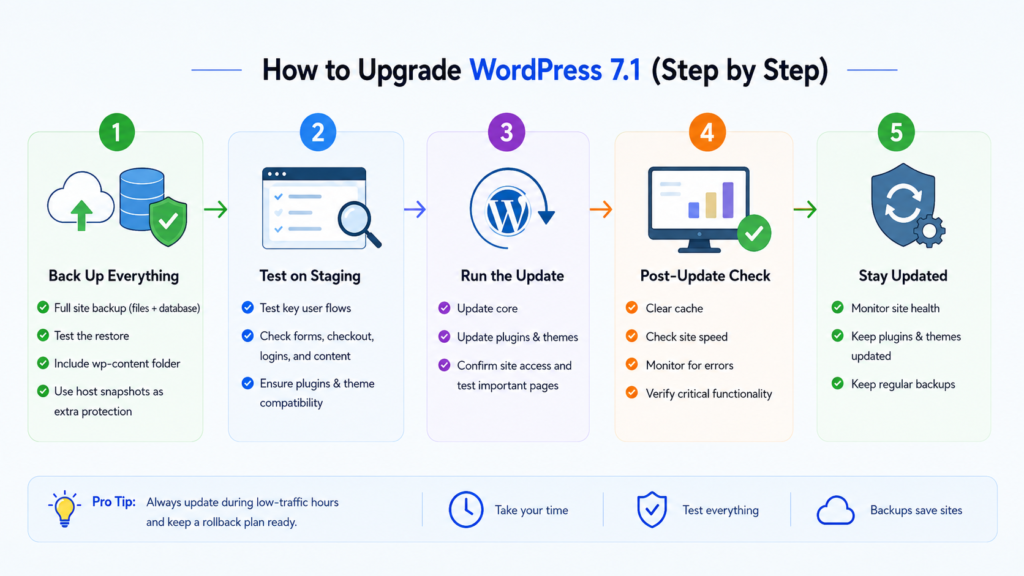
1. Back up everything and actually test it
Let me give you a million-dollar suggestion: before touching anything, back up your full site because if something goes wrong, your site must be easy to recover. UpdraftPlus and BackupBuddy both handle a complete database-and-files backup well.
Two things people skip, almost every time:
- Test the restore. A backup you’ve never restored is not a backup; spin up a temporary install if you can, and confirm the database actually imports cleanly.
- Grab wp-content, not just the database. A database-only backup won’t bring back your images, PDFs, theme edits, or plugin assets.
If your host offers snapshots, take one, but I’d still run an app-level backup on top of it. Redundancy is cheap insurance on the day something goes sideways.
2. Test on staging before you touch anything live
Set up a staging copy first through your host or a manual clone, and run the upgrade there first. Don’t just eyeball the homepage and call it done. Walk the paths that actually make you money:
- Submit your main form and confirm it lands in your inbox or CRM
- Run through checkout if you’re on WooCommerce
- Log in as a subscriber if you have gated content
- Edit and publish a post the way your team actually works
3. Run the update
Once staging checks out, click Update Now for the latest WordPress release. For high-traffic sites, pick a quiet window. Then:
- Put the site into maintenance mode (or at least pause any marketing pushes)
- Update core
- Immediately confirm you can log in and load a handful of key pages
When upgrades fail, they tend to fail fast: a white screen, a fatal error, a site stuck in maintenance mode. The first five minutes after clicking update are when you want your eyes on the screen, not in another tab.
4. Check theme and plugin compatibility
Outdated plugins are usually where things break after a core update. My approach is unglamorous, but it works:
- Update plugins and the theme on staging first
- Remove anything you’re not actually using because a disabled plugin is still a risk
- Prioritize anything touching the editor, caching, media, security, or forms
Watch for these compatibility red flags right away: the editor toolbar looking off or blocks refusing to insert, custom fonts vanishing (often a theme.json conflict), images rendering at odd sizes, or the admin area suddenly crawling.
5. Test and troubleshoot in the right order
If something breaks, work through it in this order; it’s the fastest path to an answer:
- Clear every cache (plugin, server, CDN) because stale assets can convince you something’s broken when it isn’t.
- Switch to a default theme on staging for five minutes to check whether it’s a theme issue or something else.
- Disable plugins in batches of half, not one at a time; you’ll isolate the culprit faster.
- Check your host’s error logs because one fatal stack trace usually points straight at the offending file.
6. Know when to bring in outside help
If you hit something you can’t untangle, don’t worry; we are here to solve your problem 24/7. Wpgrit focuses on WordPress builds that hold up under real traffic without constant firefighting.
Whoever you call, show up prepared: share your staging URL, a short list of pages that absolutely must work, and what you’ve already tried. It saves everyone hours and cuts out a lot of back-and-forth.
7. Watch the site for at least a week
Keep an eye on three things post-upgrade:
- Error rate — 404s, 500s, PHP errors, usually visible in your host dashboard
- Key journeys — form submissions, checkout, search, membership login
- Editorial workflow — can your team publish without fighting the blocks?
Run your top pages through something like Google PageSpeed Insights, and pay particular attention to media-heavy pages, since 7.1 changes how media is handled; it’s worth confirming your biggest galleries and hero images didn’t shift in some unexpected way.
WordPress 7.1 vs a Traditional Static Site: The Honest Comparison
Here’s the question that actually matters once the “what’s new” excitement wears off: what should you remove from your stack, and what does that change about your day-to-day work?
| Factor | WordPress 7.1 | Traditional Static Site |
| Best suited for | Content-heavy sites, teams publishing often, multi-author workflows | Landing pages, portfolios, docs; content that rarely changes |
| Non-technical editing | Built in; anyone can publish from the dashboard | Usually needs a dev or a bolted-on headless CMS |
| Speed out of the box | Good, but depends on hosting, caching, and plugin discipline | Excellent by default; pre-rendered HTML, nothing to compute |
| Security surface | Larger; database, plugins, user accounts, login page | Smaller; no database, fewer moving parts to exploit |
| Hosting cost | Moderate; needs a server that runs PHP and MySQL | Low; static hosting is cheap and simple |
| Team collaboration | Strong; Notes, revisions, roles, an editorial queue built for it | Limited; usually means Git, pull requests, and a build step |
| Maintenance load | Core, plugin, and theme updates on an ongoing basis | Fewer things to patch, but you still own the build pipeline |
| AI-assisted writing | Built into the editor as of 7.1 | Depends entirely on whatever external tools you bolt on |
| Scaling to 100+ pages | Comfortable, with the right patterns and governance | Gets harder without solid tooling and a disciplined team |
The performance reality check
WordPress can be genuinely fast. Static sites can be genuinely slow. Performance is a practice, not a property of the platform; it comes down to hosting and caching, how disciplined your theme’s markup is, how you handle media, and how many third-party scripts you’ve let onto the page.
Maintenance: you’re paying either way, just in different currency
Static sites often win on maintenance because there’s less surface area; no database, fewer dependencies, fewer user accounts to manage. But someone still has to maintain the build tooling, the framework dependencies, and the deployment pipeline. WordPress trades that for core updates, plugin updates, theme updates, and general security hygiene around users and permissions.
Neither option is free. They just charge you differently.
So, Which One Should You Actually Choose?
A decision process that’s held up well across a lot of client projects:
- List your top ten content types and who’s responsible for updating each one
- Estimate how many updates you realistically expect per month
- Map the approval chain; legal, brand, compliance, whoever needs a sign-off
- Audit what has to connect to it; CRM, email marketing, analytics, payments
- Pick whichever platform your team can actually keep maintainable for the next two years, not just launch week
If you’re still torn after going through that, here’s the tie-breaker I use: choose the stack your team can run without heroics. Publishing calmly, week after week, beats a technically perfect architecture that only one person understands.
The Bottom Line
WordPress 7.1 is a real, meaningful step forward; less workaround, more built-in capability, and a genuine nod to how teams actually work together on content now. But the payoff only shows up if you upgrade like you mean it: back up, stage it, test the paths that matter, and only then touch production.
And if the comparison to static sites has been nagging at you, the honest answer is that both can be excellent and both can be a mess; it depends far less on the platform than on how disciplined you are about running it.



Comments