


If you’ve ever migrated a WordPress site and watched your homepage throw a 500 error at 2 AM, you already know that it’s a migration issue, and then you need a professional who solves this issue, or an article explaining the issue and solution, or a solution video.
Downtime during a WordPress site migration isn’t just an inconvenience; it costs you traffic, sales, search rankings, and a fair amount of sleep.
Migration becomes critical when it’s stuck on issues or causing downtime, so yes, you need a migration expert for high-traffic sites. WordPress itself rarely causes downtime during a site migration, but it still happens because someone skipped a step due to a lack of knowledge about crucial migration steps, rushed the DNS switch, or didn’t test the new environment before pointing the domain at it.
In this guide, you will learn if you wanna migrate on your own, how to migrate a WordPress site manually, with plugins, or through a managed service while keeping downtime as close to zero as realistically possible. We’ll get into backups, the actual move, DNS timing, theme quirks, and the mistakes that catch even people who’ve done this a dozen times.
Where WordPress Migration Downtime Actually Comes From
Ask ten developers why their last migration had downtime, and you’ll hear some version of the same handful of answers:
- DNS hadn’t propagated yet, so half your visitors were still hitting the old server
- The database import looked complete but wasn’t, missing tables, broken references.
- A plugin or theme folder didn’t transfer in full.
- PHP version on the new server didn’t match, and something core to the theme just stopped working
- SSL wasn’t configured before traffic started arriving
- Someone flipped DNS before actually testing whether the site worked on the new host.
None of these are rare or exotic, but they’re boring, avoidable problems, which is honestly good news, because boring problems have boring solutions.

Start With a Migration Checklist, Not a Terminal Window
The single biggest mistake in DIY migrations is jumping straight into moving files, never knowing what can happen after that. A WordPress migration checklist takes fifteen minutes to write and saves you from most of the panic that comes later and saves your site from serious downtime issues.
Here’s roughly what we run through before touching a client’s site:
| Task | Why it matters | Timing |
| Full backup, files and database | Your safety net if something goes wrong | 24–48 hours before |
| Plugin and theme inventory | Confirms nothing’s incompatible with the new host | About a week out |
| Check PHP version and server specs | Avoids surprise fatal errors post-move | About a week out |
| Set up a staging copy on the new host | Lets you test before anyone sees it live | 3–5 days out |
| Lower your DNS TTL | Shrinks propagation time later | 24–48 hours before |
| Test forms, login, checkout on staging | Catches broken functionality early | Right before go-live |
| Pick a low-traffic window for the switch | Fewer people affected if something slips | Day of |
| Write down your rollback plan | So you’re not improvising if it breaks | Before go-live |
If you follow that table in order, you eliminate 80% of the reasons migrations go badly. It’s not glamorous advice, but it’s the advice that actually works.
Manual, Plugin, or Managed Migration:
There’s no single “right” way to do this because it depends on how technical you are, how big the site is, and honestly how much downtime you can tolerate if something goes wrong.
Manual migration gives you the most control; you can catch problems as they happen instead of after the fact, but for this you need to be comfortable with SSH, FTP, and poking around a database to completely understand the procedure.
Plugin-based migration: Duplicator, UpdraftPlus, All-in-One WP Migration that kind of tool is faster for smaller sites and doesn’t require the command line. The tradeoff shows up on larger sites, where big media libraries can hit file size limits or time out mid-transfer.
Managed migration services are worth the investment when downtime directly impacts your revenue or sales, like in e-commerce stores. At the same time, if you’re running commerce stores, membership sites, or high-traffic blogs, DIY migration is not a good option for you to choose because a small problem leads to a huge loss, so it depends on your site which option you choose.
WordPress migration team at Wpgrit handles these crucial moves regularly, mainly because we’ve already navigated the unexpected technical hiccups that usually catch first-timers off guard.
Regardless of which approach you choose, it just depends on your site, but the core process remains the same. Here’s how it works step-by-step.
How to Manually Migrate a WordPress Site Without Breaking It
Manually migrating a WordPress site sounds scarier than it is. It’s mostly patience and doing things in order.
Back everything up first. Not just the files, the database too, since that’s where your posts, settings, and users actually live. A mysqldump command or your host’s backup tool works fine. Save the backup somewhere outside the server itself, so a failed migration can’t take your only copy down with it.
Set up the new environment before you move anything. Correct PHP version, required extensions, database created with a compatible character set get all of this sorted before a single file gets transferred. Skip this, and you’ll spend your evening staring at a blank white screen wondering what broke.
Move the files. SFTP works, but if you’re at all comfortable with SSH, rsync is faster and considerably more reliable for large sites with heavy media folders. This step is where a lot of people get impatient and stop watching for errors halfway through.
Import the database, then update wp-config.php. New database name, new username, new password, new host. Small detail, but get one character wrong here and nothing will load.
Search and replace the old URLs. This is the step people forget, and it causes weird, hard-to-diagnose bugs: broken images, links pointing to a server that no longer exists. Don’t run a plain find-and-replace through phpMyAdmin; it can corrupt serialized data in your database. Use WP-CLI’s search-replace command instead; it handles serialized arrays properly.
Test on a temporary URL before DNS ever changes. Because of this step, your site can suffer serious downtime if it’s not performing correctly.
Use a temp URL, a local hosts file edit, or your host’s staging subdomain. Click through the homepage. Submit a form. If you run WooCommerce, run a test order through checkout. Only once that all works should you go near your DNS settings.
Backing Up and Restoring WordPress to a New Server, Properly
A real WordPress backup and restore to a new server is more than dragging the wp-content folder somewhere. Your backup should include the full WordPress install, a complete database export, your existing wp-config.php for reference, any custom .htaccess rules, and your SSL certificate details if you’re managing those yourself.
We’ve seen people update DNS before even confirming their database imported cleanly; that’s how a five-minute fix turns into a half-day outage.
The DNS Trick Almost Nobody Uses (And Should)
DNS is where a technically flawless migration quietly turns into hours of intermittent downtime for random visitors.
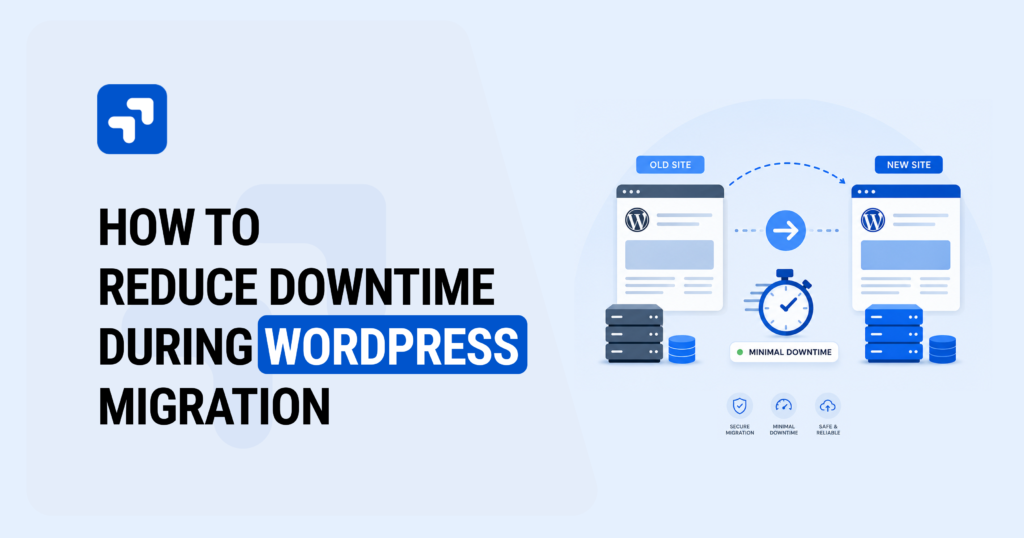
About 24–48 hours before you migrate, lower your DNS TTL Time To Live down to something like 300 seconds. Normally, TTL sits at an hour or more, which means once you actually flip your DNS records, plenty of visitors’ devices and ISPs will keep hitting your old server for a long stretch afterward. A short TTL shrinks that gap to minutes instead of hours.
Once everything’s confirmed stable on the new server, bump the TTL back up.
WordPress Theme Migration Isn’t Automatic
Themes get overlooked constantly in a WordPress migration, especially when you’re moving between hosts running different PHP versions. A theme that ran perfectly fine for two years on your old host can throw fatal errors the moment it lands on a server with a newer PHP build.
Before you migrate, check that the theme:
- Actually supports your new server’s PHP version.
- Doesn’t lean on deprecated WordPress functions somewhere in its code.
- Has any custom code changes backed up separately, especially if you’re not on a child theme
- Loads without errors on staging, not just “seems fine” on the live site afterward.
If a theme migration is happening alongside a full site move, test the theme by itself first. Debugging a broken theme on staging is a ten-minute fix. Debugging it while your live site is down is a very different kind of afternoon.

The WordPress Migration Problems That Show Up Again and Again
Even careful migrations run into snags. Here’s what tends to go wrong, and the usual fix.
White screen, no error message. Almost always a PHP memory limit or a plugin conflict. Turn on WP_DEBUG temporarily so you’re looking at an actual error instead of guessing.
Images missing, media broken. Usually an incomplete file transfer, or file permissions that got mangled somewhere along the way. Check that the entire uploads folder actually made it across.
Login redirect loops. Leftover URL references in the database, or a cookie domain setting that doesn’t match the new environment.
Mixed content warnings after switching to HTTPS. Hardcoded http:// links still sitting in the database. A proper search-and-replace during migration handles this before it becomes visible.
Site feels slower after the move. Caching plugins configured around the old server’s setup often need reconfiguring for the new one; don’t assume old cache settings carry over cleanly.
Emails stop sending. A lot of hosts require SMTP configuration rather than relying on PHP’s default mail function, especially newer server setups.
None of these are disasters by themselves. They become downtime emergencies specifically when they’re discovered after the domain’s already pointed at the new server, which is really the whole argument for testing on staging first.
At WPGrit, we’ve handled migrations for everything from small blogs to WooCommerce stores processing hundreds of orders a day, and the pattern is always the same: the migrations that go smoothly are the ones that were planned properly, not the ones that got lucky.
Moving to Another Hosting Provider
Migrating a WordPress site to another hosting provider is different from moving within the same host’s infrastructure, because now you’re dealing with two completely separate companies’ configurations and support teams.
Check these points carefully:
- Does the new host’s PHP version and stack match, or exceed, what your current site needs?
- Do they offer migration support or a dedicated tool? Many do, and it’s worth asking rather than assuming.
- Are there plugins they restrict or disable during migration? Some managed hosts are strict about this.
- Keep the old hosting account active for some time, until you and your site are comfortable with the new hosting.
Moving to WP Engine Specifically
A WP Engine site migration comes with its conditions because they provide their own migration plugin, which does handle most of the heavy lifting. Still, WP Engine also restricts certain plugins outright, manages database access differently than a standard host, and runs a caching layer that behaves nothing like a typical LAMP stack. If WP Engine is where you’re headed, check their disallowed plugins list before migrating, not after your site’s already live and you’re scrambling for a replacement plugin.
After the Move: Test Before You Call It Done
Once the site’s live on the new server, resist the temptation to declare victory just because the homepage loaded. Go through it properly:
- Click through the main menus and internal links.
- Submit your contact form and actually confirm the email arrives.
- Run a test order through checkout if you’re running an online store.
- Confirm SSL is active and then check that your sitemap and robots.txt are reachable.
- Watch site speed for the first day or two; caching layers behave differently right after a move.
A homepage that looks fine can still be hiding a broken checkout or a tracking script that stopped working. This last check is quick, and it catches the stuff that costs you conversions or search visibility a week later, when it’s harder to trace back to the migration.
When DIY Isn’t Worth the Risk
DIY migration works fine for smaller sites where, in case of any issue, a couple of hours of downtime isn’t going to hurt much. The math changes for ecommerce stores, membership platforms, or anything generating real traffic or revenue, where downtime has an actual cost attached to it, hour by hour.
That’s the gap our WordPress website migration services exist to close, handling the DNS timing, the staging tests, and the plugin quirks. Hence, you’re not the one troubleshooting a broken checkout during a Tuesday afternoon traffic spike. For most revenue-generating sites, a professional migration costs a lot less than even a few hours of being offline.
The Bottom Line
Reducing downtime during a WordPress migration isn’t about finding some clever shortcut. It depends on sequencing: back up first, build the new environment before moving anything into it, test on staging as you mean it, and only then touch DNS. If you follow the right steps carefully without skipping any major step, migration disasters don’t happen to you.
If you’d rather someone else carry the risk, that’s literally what we do. Check out our WordPress Website Migration & Modernization service; we handle the planning, the testing, and the DNS timing, so your migration happens quietly in the background instead of turning into a six-hour outage story you tell people later.
FAQ’s:
Set up the new host first while your old site stays live, transfer files and database, test everything on a staging URL, and lower your DNS TTL ahead of time. Only switch DNS once you’ve confirmed the new environment actually works. Done in that order, most visitors never notice the change happened.
For a small or mid-sized site, the technical work itself can run anywhere from an hour to half a day, depending on size and method. If you test properly and manage DNS timing with a short TTL, visitors typically don’t notice at all. Bigger sites, heavy media libraries, and custom functionality take longer and are usually better handled by someone who’s done it before.
It comes along file-wise, but don’t assume it works the same on the new server. Themes can break across different PHP versions or server configurations, so test it specifically before considering the migration finished, not just “it loaded, good enough.”
Incomplete file transfers, database URLs that still point to the old domain, PHP version mismatches, and the big one: switching DNS before actually testing the new server
Yes, somewhat. WP Engine restricts certain plugins and runs caching and file management differently from a standard host, so it’s worth checking their platform requirements before the move, not after your site’s already live there and something’s not working.


Comments