

Headless WordPress keeps WordPress as the place your team writes and manages content, while a separate frontend, often built in Next.js or another JavaScript framework, handles what visitors actually see. It’s worth the effort for high-traffic sites, custom interfaces, and content that has to reach several channels. Done carelessly, it can cost you rankings and create unplanned security work.
Teams usually start asking this question after a rough stretch just because the site slows down under load. The designers want something no theme can produce, or the same content needs to appear on the website, in a mobile app, and inside a partner portal, so that a headless solution can solve all of that.
So the better question is which parts of your site actually need to be decoupled, and what you’re willing to give up for that. This guide covers that decision, the rendering and SEO choices that determine whether the project helps or hurts, the security work people tend to underestimate, and a migration approach that keeps the rankings you already have.
Start With Your Constraints, Not the Architecture
Before anyone opens an editor, ask yourself three things:
- Who updates content every day, and what do they need to work efficiently?
- What does the site need to do that a standard theme handles poorly?
- Where else does the same content need to appear?
If your answers describe a content site with a normal layout, a small team, and modest traffic, improve the classic build first. Better caching, optimized images, a decent host, and fewer plugins fix most slowness complaints. A lot of sluggish sites drag around a heavy theme or too many plugins. The architecture itself is fine. If you are facing sluggish sites and tired of Slow, generic themes, here’s your complete guide to Custom WordPress, which walks through how custom code can strip that weight out while keeping the editing experience your team already uses.
Headless earns its keep when the answers point the other way: custom interfaces, several outputs, or traffic that one PHP stack can’t handle reliably.
What Changes When WordPress Goes Headless
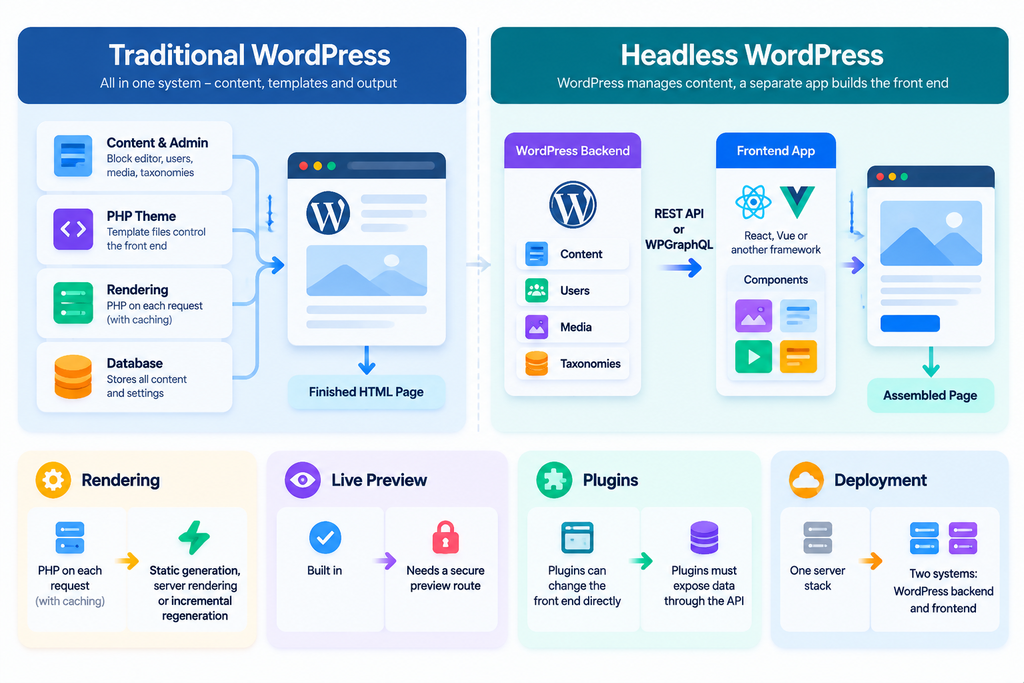
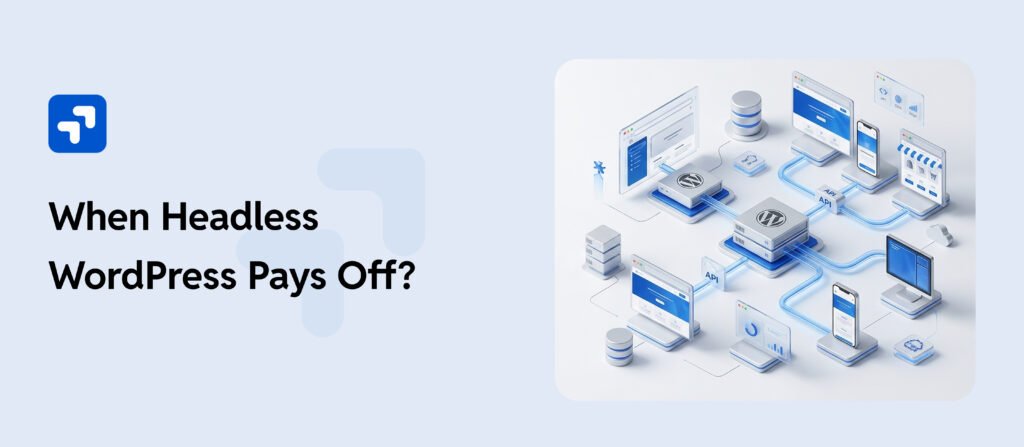
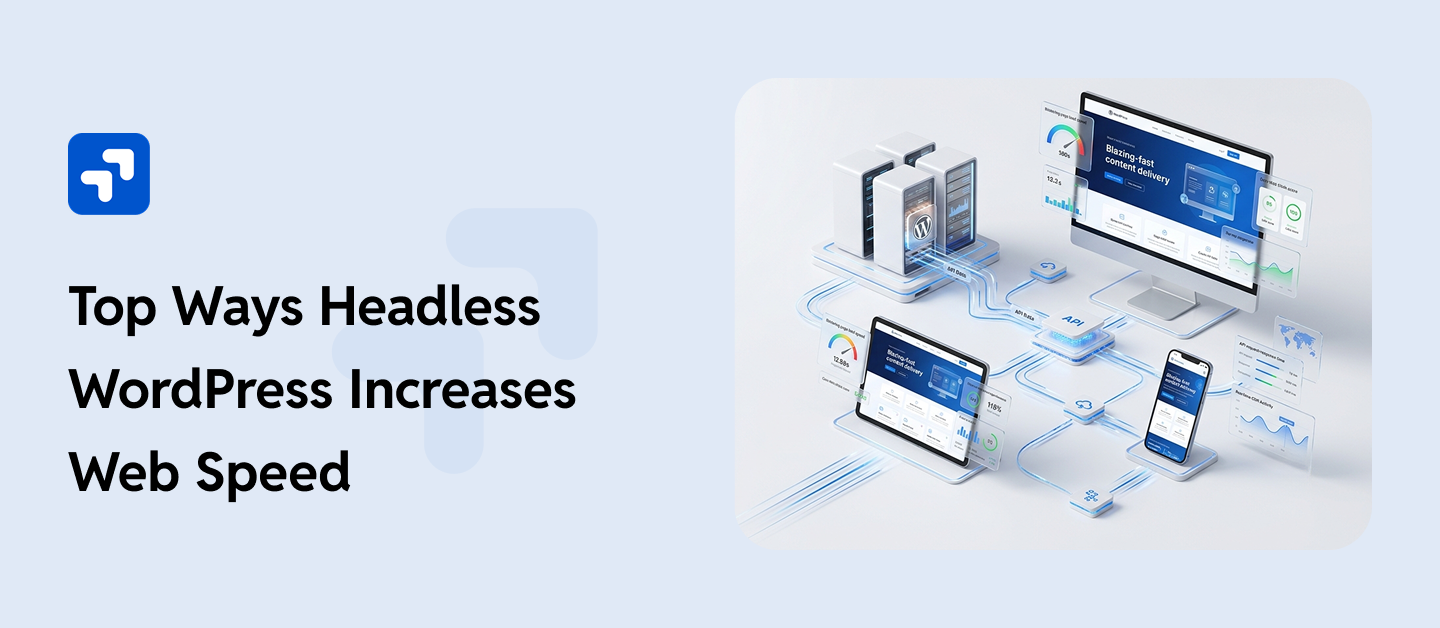
A standard WordPress install stores content, runs the templates, and returns finished HTML; instead, a headless build drops the template layer. WordPress still manages content, users, roles, media, and taxonomies. It shares that content through the WordPress REST API or WPGraphQL, and a separate application fetches what it needs and assembles the page.
| Layer | Traditional WordPress | Headless WordPress |
| Content entry | Block editor inside WordPress admin | Same editor, or a custom admin interface |
| Page templates | PHP theme files | Components in React, Vue, or another framework |
| Rendering | PHP on each request, often with page caching | Static generation, server rendering, or incremental regeneration |
| Data delivery | Internal database queries | REST API or GraphQL |
| Live preview | Built in | Needs a secure preview route |
| Plugin output | Plugins can change the front end directly | Plugins must expose data through the API |
| Deployment | One server stack | Two systems: WordPress backend and frontend |
Where Headless Earns Its Place and Its Importance:
Headless techniques fit best when there’s a concrete reason to split the layers. In practice, these cases come up most often:
- Multi-channel publishing: One content source can feed a website, a native app, a kiosk, and a partner feed without retyping anything.
- Custom interface needs: Configurators, interactive tools, and shared component libraries are much easier to build when the frontend isn’t tied to a theme.
- Predictable scale: A publisher can serve most pages from a CDN, so traffic spikes land on the edge instead of the origin server.
- Application logic next to content: Account areas, booking flows, and live data can sit beside articles without pushing WordPress into work it wasn’t built for.
- Multi-brand networks: Several brands can share one content source while each keeps its own frontend and visual identity.
What You Give Up
Vendors rarely talk about the costs, so here they are. Budget for each one before you sign:
- Plugin behavior changes: Plugins that print HTML on the front end, like many page builders, popup tools, and form plugins, stop working automatically. You’ll rebuild those features or replace them.
- Visual editing gets harder: The site editor and live preview no longer match the final design. Editors need a preview pipeline to see their changes in context.
- The team needs more skill: PHP and WordPress knowledge still matter. The frontend adds JavaScript, API design, and deployment work on top.
- Two systems need upkeep: Each side has its own updates, dependencies, and failure points.
- Default SEO features stop working: Sitemaps, canonical tags, and metadata that plugins used to handle now need manual wiring.
None of this argues against headless. Rather, it means these items need a line in the budget and the project plan from the first day.
Rendering Decides Whether Headless Helps Your Rankings
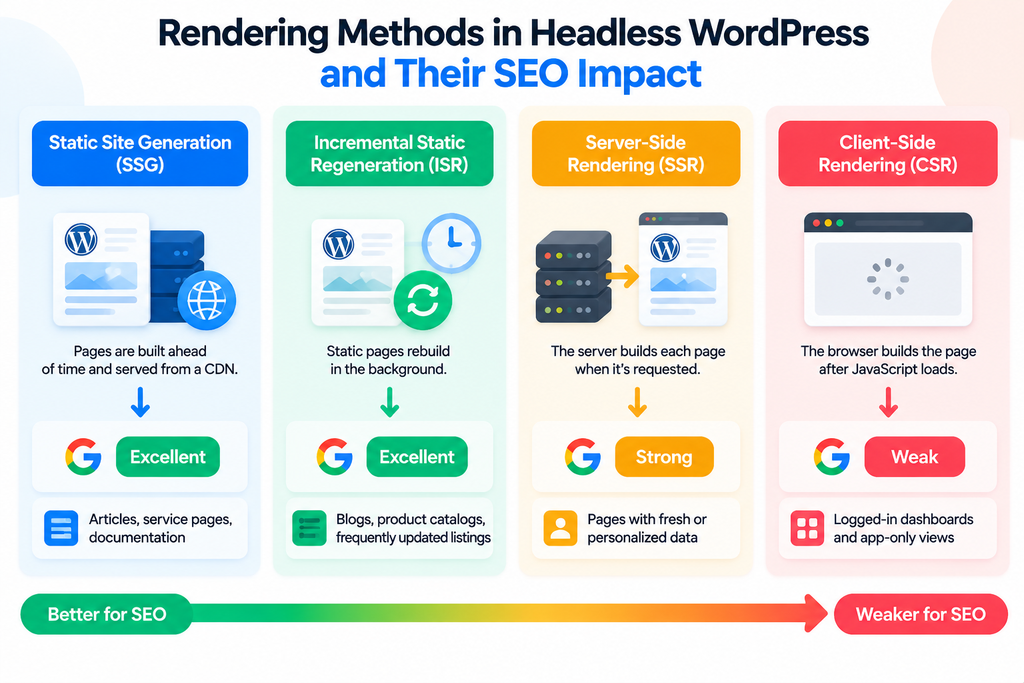
Rendering is the biggest SEO decision in a headless build because Google can run JavaScript, but it often does so after the first crawl, and sometimes well after. If a page arrives as an empty shell and fills in later, indexing can be thinner than you expect, and new articles take longer to show up. Pages that deliver complete HTML on the first response avoid that gap.
| Rendering method | How it works | SEO fit | Typical use |
| Static site generation (SSG) | Pages are built ahead of time and served from a CDN | Excellent | Articles, service pages, documentation |
| Incremental static regeneration (ISR) | Static pages rebuild in the background on a schedule or on demand | Excellent | Blogs, product catalogs, frequently updated listings |
| Server-side rendering (SSR) | The server builds each page when it’s requested | Strong | Pages with fresh or personalized data |
| Client-side rendering (CSR) | The browser builds the page after JavaScript loads | Weak for indexable content | Logged-in dashboards and app-only views |
Most content sites end up mixing these methods because static generation suits articles and service pages. Incremental regeneration fits listings that change during the day. Server rendering works for pages that need fresh or personal data; meanwhile, client-side rendering belongs on interactive tools that don’t need to rank.
The Technical Checks That Protect Rankings
Run these checks on staging before real traffic reaches the new frontend. Each row covers a problem that keeps showing up in headless projects.
| Check | What to verify | Why it matters |
| Unique metadata per route | Title tag, meta description, canonical URL, and Open Graph tags appear in the initial HTML | Search snippets and social previews depend on them |
| XML sitemap | Every indexable URL is listed, and the file updates on publish | The core WordPress sitemap lives on the backend domain, so the frontend needs its own sitemap or a proxy |
| Redirect map | Every changed URL returns a 301 to its new address | Keeps links and the authority they carry |
| Crawlable navigation | Menus and in-content links use standard anchor tags with real URLs | Crawlers follow links, not button clicks |
| Core Web Vitals | LCP, INP, and CLS pass in field data | Page experience shapes how users judge your site |
| Structured data | Article, Organization, and BreadcrumbList markup render on the server | Helps search engines and answer engines read the page |
Two items deserve extra attention; the first is cache invalidation: if an editor fixes a factual error at 9 a.m., and the frontend keeps the old copy until the next scheduled build, the wrong version stays live for hours. Set WordPress to send a webhook on publish and use on-demand revalidation, so the update goes live within minutes. The second is images. Serve media from a CDN, declare dimensions to prevent layout shifts, and pass alt text from WordPress into the frontend markup.
Harden the Decoupled Stack Before Launch
A headless setup does cut some exposure because visitors never touch theme files or PHP pages, and a static frontend on a CDN gives attackers less to work with. The risk doesn’t disappear, though. It moves into the API, the admin login, the preview route, and the build pipeline. Each of those belongs in your security scope.
- Limit the REST API and WPGraphQL schema to the fields the frontend uses. Block any endpoint that exposes user data or unpublished content.
- Require strong passwords and strong security for every editor to avoid any kind of security issue.
- Use scoped application passwords or tokens for write access, with a separate credential for each integration.
- Protect the preview route with a short-lived secret, and confirm that draft content never shows up in the public build.
- Allow cross-origin requests only from your own frontend domains.
- Store API keys in environment variables, not in the repository.
- Add rate limits at the CDN or gateway to slow scraping and abuse.
- Follow security advisories for WordPress core, plugins, and frontend packages, and patch both sides on a schedule.
- Back up the database and media, and keep the frontend code in version control so a redeploy takes minutes.
Our WP Security & Risk Management service covers this ground. We run that review before a headless launch, because waiting for an incident is the expensive way to learn these lessons.
How to Move an Existing Site Without Losing Rankings
A rushed cutover is the fastest way to lose search visibility you spent years building. To avoid that, here’s the sequence that has worked well for us:
- Map the content model.
Decide which post types, taxonomies, and custom fields the frontend will consume. Drop anything nobody uses.
- Build a full URL inventory.
Export every indexable URL along with its traffic, backlinks, and current rankings to build a full URL inventory to make the work easier. This list drives the redirect plan.
- Build the new frontend on a staging domain.
Block indexing with password protection or a noindex directive until launch day.
- Compare old and new pages side by side.
Crawl both versions and check titles, canonicals, internal links, and status codes for each URL.
- Test the redirect map.
Confirm that every old URL reaches the right destination in a single hop.
- Cut over during a quiet period.
Lower the DNS TTL beforehand, switch, and watch error logs, index coverage, and crawl stats in Google Search Console for at least two weeks.
The downtime side follows the same discipline. If you are facing issues with downtime and wondering what to do, “How to Reduce Downtime During WordPress Migration” which walks through staging tests, DNS timing, and rollback planning in detail. Most of those steps apply to a headless switch as well.
How to Judge a Headless Partner
Headless projects expose generalists fast because a solid partner knows WordPress core, the REST API or WPGraphQL, a modern frontend framework, and deployment pipelines. These questions will help you sort a shortlist:
| Question to ask | A strong answer sounds like |
| Which rendering method will each page type use, and why? | Names SSG, ISR, or SSR per route, with a reason tied to how often content changes |
| How will SEO metadata reach the initial HTML? | Describes server-rendered metadata, plus how sitemaps and redirects get handled |
| How will editors preview drafts? | Describes a secure, token-protected preview route |
| How is the API protected? | Mentions scoped permissions, rate limits, and secret management |
| What happens after launch? | Names monitoring, update schedules for both systems, and a support model |
If you’re building a shortlist, our guide How to Evaluate Custom WordPress Development Services in 2026 covers how to vet providers before you sign. Most of its points carry over to headless work.
Headless WordPress By WPGrit:
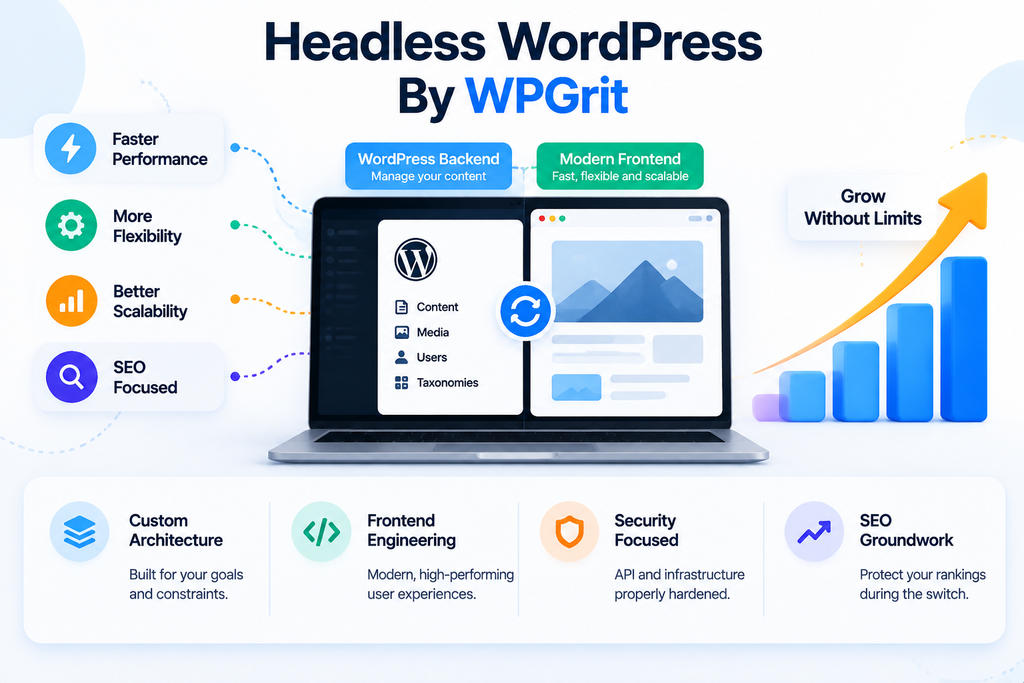
Headless WordPress can be the right architecture, but only for good reasons. Start from your constraints, choose rendering with search engines in mind, protect the API as carefully as the admin, and move existing content with a redirect plan you’ve tested. Do those things and the switch gives you speed, flexibility, and room to grow. Skip them, though, and you end up with a faster-looking site that ranks lower.
If you’re weighing this decision now, contact WPGrit for a scoping conversation. We’ll tell you honestly whether headless suits your site or not, but if a classic build serves you better, we’ll say that too.
WPGrit builds headless WordPress systems for agencies and businesses that have outgrown a standard setup. We handle the architecture, the custom frontend engineering, the hardening, and the SEO groundwork that protects rankings professionally during the switch. Recent launches for 4Rivers and Foursight Solutions reported 99.9% uptime in our case studies.
If you have an existing site and wanna migrate it, don’t worry because our WordPress Website Migration & Modernization moves an existing site with a tested redirect plan.
Mistakes That Cost Teams the Most
- Designing the frontend first and working out the content model later; this data structure then bends around the design, and editors live with that for years.
- Leaving SEO until launch week. Metadata, redirects, and sitemaps belong in the first sprint.
- Using client-side rendering on pages that need to rank. Those pages often index slowly or only partly, even when they look fine in a browser.
- Leaving the preview route and API open because the frontend runs without locking them down.
- Skipping the redirect map because a catch-all rule seems to cover old URLs. Those rules usually send visitors to the homepage and wipe out the relevance old pages earned.
Frequently Asked Questions
Usually not because a small brochure site gains little from decoupling, and the extra development and upkeep costs tend to outweigh the speed gains. A well-configured traditional WordPress site with caching and a capable host serves most small businesses well. Headless starts to make sense when a small site also needs an app-like interface or feeds other channels.
It can, though the architecture is rarely the only cause because pages that depend on client-side rendering may index slowly or incompletely. Teams that lose metadata or redirects during the switch often watch traffic drop. Server-side rendering or static generation, along with complete metadata, a working sitemap, and 301 redirects, keeps SEO at parity or better.
It removes some risk. Visitors never load theme files or PHP pages, and a static frontend on a CDN has little to no attack. The API, the admin login, and the preview endpoints become new targets, though, and both systems still need regular updates. Security depends on how tightly you lock down the API and how consistently you maintain both sides.
Expect two deployment pipelines, two sets of dependencies, and a defined process for moving backend changes into the frontend. Teams that document the content model, test updates in staging, and automate deployments keep the overhead under control. Teams without that discipline often find headless harder to maintain than a classic site.
Yes, with more engineering involved. That said, WooCommerce exposes a Store API that custom frontends use to build product pages, carts, and checkout flows. Of course, payments, account pages, and checkout edge cases all need careful testing. Ultimately, headless fits stores that need a custom storefront experience. Stores with standard requirements, on the other hand, usually do well on a classic setup.


Comments