

WordPress 7.2 Beta 1 is a test build released on October 20, 2026, and unless you build plugins, themes, or client sites, your job right now is to prepare, not to install it. The final version is due on December 8, 2026. Most of what’s new is practical rather than flashy: better responsive controls, friendlier Notes, image processing in the browser, and a quicker admin. WordPress 7.2 Beta 1 guide sorts it by who you are and what you’re trying to fix, so you can skip whatever doesn’t apply to you.
Do you actually need to care about WordPress 7.2 Beta 1?
That depends on you because a blogger and a plugin author have very different homework this month, so here’s the quick version by role.
| If you are… | What matters most in 7.2 | What to do right now |
| A site owner or small business | Faster admin, fewer layout headaches on mobile, safer update path | Read this guide, check your plugin list, wait for the final release |
| A blogger or content editor | Notes, “On This Day” widget, easier uploads, clearer error messages | Try Playground for ten minutes to see the new editing feel |
| A designer or theme builder | Responsive controls, text shadows, Global Styles filter | Test on a local site with your theme and theme.json |
| An agency or freelancer | Plugin compatibility across client sites | Clone one representative client site to staging and run it on Beta 1 |
| A plugin or theme developer | Secrets API, Abilities API, Interactivity API, admin icon changes | Run your code against Beta 1 and read the linked Trac tickets |
Notice the pattern because only the last two rows need to install anything. Everyone else can learn what’s coming, plan, and let the release settle before touching a live site.
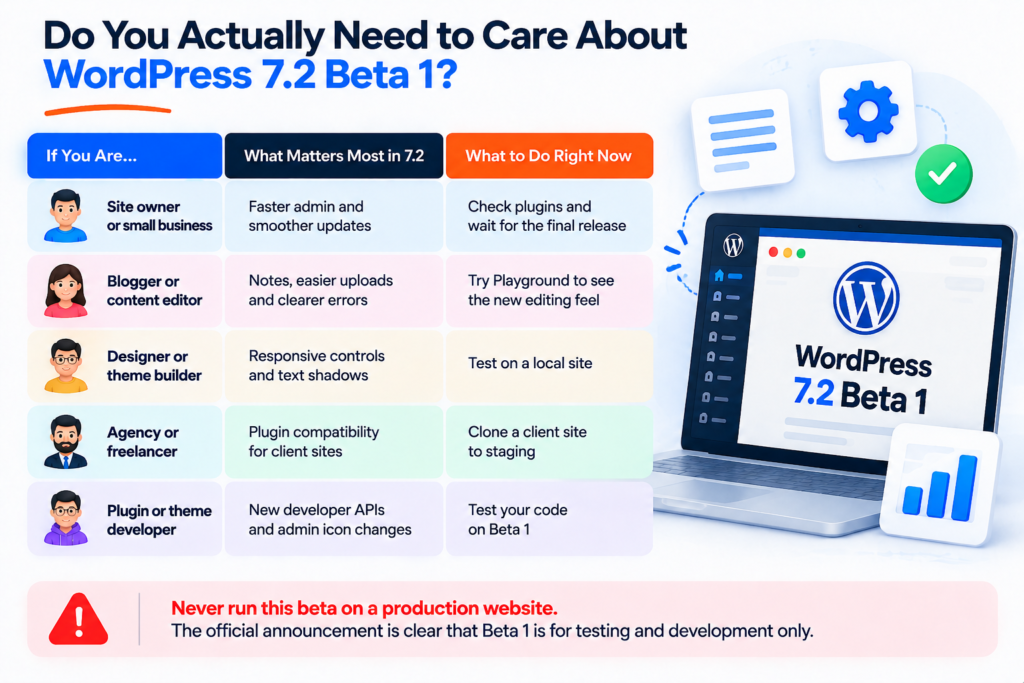
One rule applies to all five: never run this beta on a production website; the official announcement is clear that Beta 1 is for testing and development only.
Eight everyday problems WordPress 7.2 sets out to fix
Feature lists are easy to skim and just as easy to forget. So here is the same release organized by the frustration each change addresses. Everything below comes from the official Beta 1 announcement.
“My layout looks great on desktop and strange on my phone”
WordPress 7.1 started letting you style blocks differently per screen size. Version 7.2 pushes that into more blocks and design tools. The Gallery block is the best example, with separate settings for columns, image cropping, and aspect ratios by viewport. If you’ve ever added custom CSS just to make a gallery behave on a phone, this is aimed at you.
“I can’t tell where my site’s styling is coming from”
Two changes help here: a new Customized filter lets you find blocks whose styles have been modified, and the block inspector now shows inherited Global Styles values right where you’re working. There’s also expanded support for styling form elements, which has been a gap for a long time.
“I want a little depth in my headings without a plugin”
Text shadows are now a built-in design control. You can set them per block, and theme developers can define shadow presets in theme.json so the look stays consistent across a site.
“Editing my menu means leaving the page I’m on”
In the Site Editor, you can now add, organize, and edit navigation items from the sidebar in the latest update of beta 1.
“Feedback on my drafts is scattered everywhere”
Notes get the biggest visible update in the WordPress 7.2 beta 1 release. They now live in the editor canvas as margin conversations, support emoji reactions, and have a toolbar icon for quick access. You can keep Notes and the block settings sidebar open together, and a minimized mode reduces clutter. For teams, that means less back and forth over email and chat.
“Uploading images is slow, and my host struggles with them”
The Media Library now supports client-side media processing. Images can be resized, compressed, and converted in the browser before they upload; that can cut upload times and ease the load on your server, particularly on hosting with limited image-processing support. Results will vary by browser and file type, so test with your own images before counting on it.
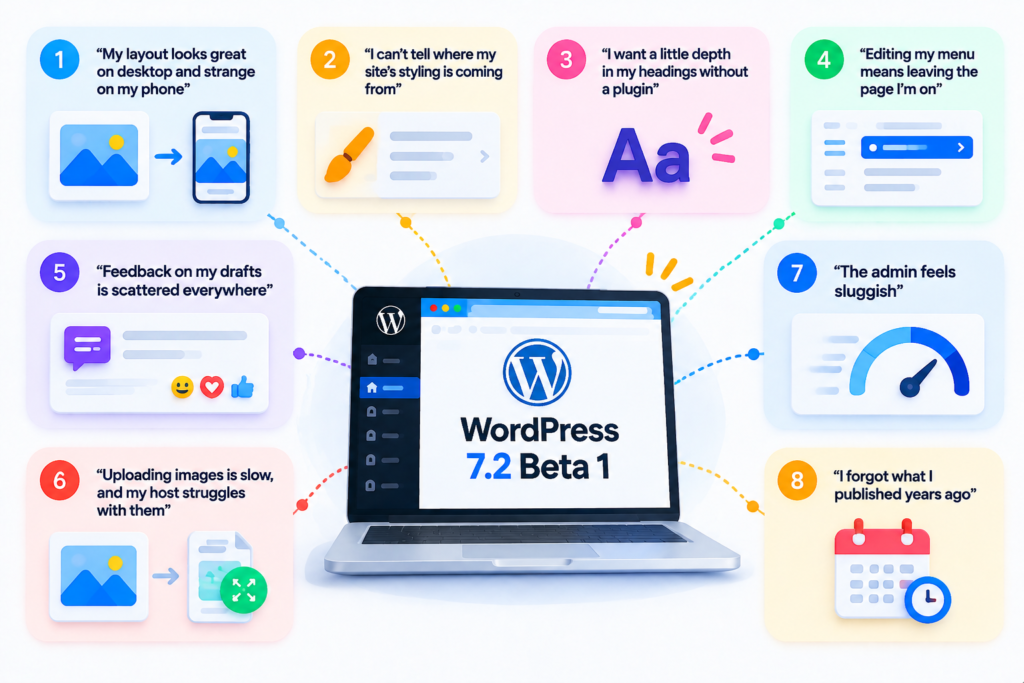
“The admin feels sluggish”
Admin scripts and styles now load individually instead of as big combined files, which helps browser caching. A new prefetching feature also predicts the next admin screen you’ll likely open and loads its resources early. Faster hops between the dashboard, post lists, and editor are the goal. Measure it on your own hosting before you decide how much it helps.
“I forgot what I published years ago”
The new On This Day dashboard widget is a small thing with a real use: finding old posts worth refreshing, resharing, or celebrating. Error messages are clearer, common editor interactions are smoother, and Dashicons in the admin bar and sidebar are being replaced by icons from the WordPress icon library for a more consistent look. There’s also a new DataForm-powered block settings inspector, which has its own public call for testing.
What changes under the hood for Developer Corner:
If you write code for WordPress, four areas deserve your attention.
Secrets API’s:
This gives plugins a standard, secure way to store credentials and supports encryption at rest, credential rotation, and customizable storage providers. Plenty of plugins still keep keys in plain text in the database. A core-level approach makes the safer habit the easier one.
Abilities API:
It gains new ways to access and query WordPress data, giving integrations, automation, and AI-powered tools a more consistent base to build on.
Interactivity API:
New options for rendering trusted HTML and handling reactive navigation give block developers more room to build dynamic features.
HTML API and block support:
Expect more dependable markup processing and better control over how custom blocks are styled across devices. There’s also a small, fun addition: random content redirects. A dedicated URL can send a visitor to a randomly selected post, which is a neat way to get readers exploring your archive. The announcement links the related Trac tickets for each item.
Your countdown to the December 8 release
The official target for WordPress 7.2 is December 8, 2026, but a few third-party trackers mention a window of December 8 to 10, so allow a day or two of slack. Here are a few things you must sort out so nothing becomes a last-minute scramble or a headache.
- This week (Beta 1): Skim this guide, open a Playground instance, and write down any feature you want to try. If you build plugins or themes, run them against Beta 1 now, since early feedback has the best chance of shaping the final release.
- Through November (later betas and release candidates): Clone your site to staging and test your key pages, forms, checkout, and login. Watch for compatibility notes from the plugin authors you rely on.
- Release week: Take a full backup, review the field guide and developer notes, and resist the urge to update on day one.
- One to two weeks after release: Update production in a quiet window once the first round of bug reports has settled. Avoid Friday afternoons.
Schedules can move. Check the official release page before you finalize any dates.
A 20-minute test run that won’t put your site at risk
You don’t need to be technical to explore Beta 1. Pick the path that fits you.
The no-setup route: WordPress Playground. Open the 7.2 Beta 1 Playground link from the official announcement, and it runs in your browser. Nothing is installed, and nothing is saved to a real site; that’s why it’s ideal for looking at Notes, text shadows, and the new dashboard widget.
The proper route: a staging copy. If you manage a real site, clone it to staging first. Then use one of these two methods:
- WordPress Beta Tester plugin: install and activate it, choose the “Bleeding edge” channel, and select the “Beta/RC Only” stream.
- WP-CLI or direct download: run wp core update –version=7.2-beta1.
Once Beta 1 is running on staging, spend your twenty minutes like this:
- Open the editor, write a short post, and add a Gallery. Try the responsive settings.
- Leave a Note on a paragraph, add an emoji reaction, and try the minimized mode.
- Upload three or four of your usual images and see how the Media Library handles them.
- Click through your most important pages, a contact form, and your login screen.
- Open the admin menu and check that any custom icons still look right.
- Write down anything strange, with the steps that caused it, and post that on support forums.
Why some sites shrug off a release, and others panic:
Two websites can run the same version of WordPress and have completely different experiences when a major release arrives. The difference is rarely luck; instead, it’s architecture.
A site with a clear structure has a short list of well-chosen plugins, customizations kept in one documented place, and a staging setup that mirrors production. When 7.2 lands, that site needs an afternoon of testing and a quick checklist. A site built from overlapping plugins and one-off patches turns the same release into a gamble, because nobody is quite sure what depends on what.
That’s the thinking behind WPGrit. We look at WordPress through two lenses: how a site is architected, and how well it will hold up over years rather than weeks. Release news like this is a good reminder of why both matter. The features in 7.2 are useful, but the real question for most businesses is whether their setup can absorb change calmly.
If you’d like a second opinion on your own setup before December, that’s the kind of long-term conversation we enjoy having. If you’d like help planning that update around your own setup, get in touch with the WPGrit team.
Questions people keep asking about WordPress 7.2 Beta 1
Please don’t, because the WordPress 7.2 Beta 1 announcement says plainly that Beta 1 is for testing and development only. Use a local install, a staging copy, or WordPress Playground in your browser instead.
Yes, my point here is that site owners, editors, and designers catch problems developers miss because they use WordPress differently. Try your normal routine on a staging copy and report anything odd.
Most well-maintained plugins will be fine, but no one can promise that for every site. Test your own plugin stack on staging and watch for compatibility notes from the authors as the release gets closer.
Restore the backup you took before testing, then note what happened and, if you can reproduce it, report it in the Alpha/Beta support forum or on Trac.
It includes admin performance work and browser-side image processing, which may help editing and uploads. Real results depend on your hosting, plugins, and workflow, so measure on your own site.
Not in the Beta 1 post. Check the official field guide and release notes closer to launch, and confirm your host’s PHP version while you’re planning.



Comments