

WordPress 7.0.3 came out on August 6, 2026, and honestly, there’s just one security patch, plain and simple, but twelve serious vulnerabilities were fixed. One of them was serious enough to get a High severity rating, and it shipped barely three weeks after the last security release, 7.0.2.
Table of Contents:
1. WordPress 7.0.3 Release: 12 Security Vulnerabilities Fixed
2. Decoding WordPress’s Latest Security-Only Release
3. What’s Actually in the 12 Major Fixes
3.1 The Big One: Pre-Auth XSS on the Login Screen
3.2 Stored XSS Through Post Content and Emoji Settings
3.3 Comments Showing Up Where They Shouldn’t
3.4 Multisite Privilege Escalation
3.5 SSRF Through URL Validation
4. Which Version Are You Actually Running, and Does It Matter?
5. Backport vs. Full Upgrade; Which One Do You Actually Need?
6. Who Needs to Move Today, and Who Has a Little Room
7. Actually Updating to 7.0.3
8. Before You Click Update, Answer These
9. What to Check Once You’ve Updated
10. The Mistakes Almost Everyone Makes
11. Frequently Asked Questions
Wrapping Up
Decoding WordPress’s Latest Security-Only Release
It’s a security-only release because of evolving modern threats; updates are much needed. For businesses that rely on WordPress, ongoing WordPress maintenance helps keep core software, plugins, and themes properly maintained. John Blackbourn led the release, and the changeset is small compared to a normal update cycle, roughly 31 files touched. Honestly, most of that is CI configuration and dependency bumps rather than anything user-facing. The real work, the security fixes themselves, sits in maybe a dozen core files.
Worth pausing on that for a second. WordPress didn’t fold this into a scheduled minor release or wait for the next feature cycle. They pushed it out as its own thing, which usually tells you the team decided these issues couldn’t wait.
WordPress 7.0.3 Release Worth Paying Attention To
Here’s something the release notes won’t spell out for you but that’s worth knowing anyway: WordPress core bugs have been turning up at a strange pace lately, and a good chunk of that traces back to AI-assisted security research. A few of the flaws patched in 7.0.3- the CSS injection issue among them. This issue was found by teams pointing AI models directly at WordPress core, not by someone manually reading through commit history line by line.
That’s a real shift, and it changes the calculus for anyone running a WordPress site right now; finding something like a chained SQL injection used to take a skilled researcher weeks of work. These days, a model can land on one in a matter of hours, for what amounts to pocket change. The 7.0.2 release before this one reportedly came out of the same kind of process, an AI system working through the batch API and arriving at a working remote-code-execution chain in under a day.
What’s Actually in the 12 Major Fixes
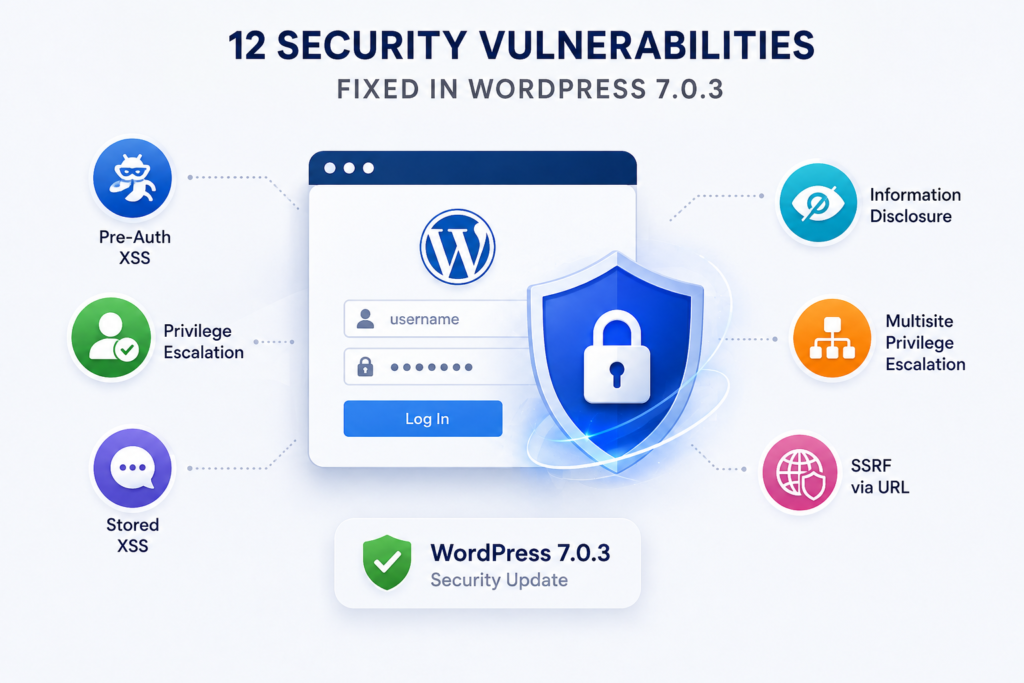
Saying “twelve vulnerabilities” out loud in the 7.0.2 version doesn’t mean much until you break it down into what it looks like in practice. Most WordPress security problems land in one of a few familiar categories. There’s cross-site scripting, where an attacker gets a script running inside someone’s browser under your domain; from there, they can steal session cookies, hijack an admin account, or run phishing off a domain people already trust because it’s yours.
There’s privilege escalation, where an account that should have limited access, or a plugin that’s been quietly compromised, works its way up to full admin. And there are authentication edge cases, where login screens, password resets, or email verification get bent into doing something they were never supposed to do.
Even if your site never touches a credit card number, it’s still holding onto things attackers want: user accounts, admin sessions, whatever search authority you’ve built up, password reset tokens. That’s plenty of reason for a release like this one to exist.
The Big One: Pre-Auth XSS on the Login Screen
The most serious fix here got its own CVE: CVE-2026-64638, for a pre-authentication reflected cross-site scripting bug on the login screen that could, in the worst case, escalate into PHP code execution through the plugin and theme editor: high severity, CVSS 8.9.
The word to focus on is “pre-authentication.” It means there’s no account required to trigger this, just a crafted link and someone willing to click it. If your site is public (and /wp-login.php almost always is), assume that page has already been probed more times than you’d like to think about. Not “sometimes.” Basically all the time.
This kind of thing isn’t hypothetical, either. I’ve seen a single reflected XSS chain turn into a full admin takeover after nothing more dramatic than an editor clicking a link that had been shared in a Slack channel. One click, and shortly after, a new admin account shows up that nobody remembers creating.
Stored XSS Through Post Content and Emoji Settings
Two more of the fixes cover stored XSS reachable by contributor-level accounts, one through the emoji settings element, one through the Post Content block. Stored XSS tends to be nastier than reflected XSS because the malicious script actually lives in your database and fires for every visitor who loads that piece of content, not just for whoever happened to click a bad link.
Comments Showing Up Where They Shouldn’t
There’s also a fix for an information disclosure issue in the Latest Comments block, which could expose comments on posts that were supposed to be password-protected. If you run gated content or membership pages with comments switched on, this one’s relevant to you specifically.
Multisite Privilege Escalation
Anyone running WordPress Multisite with open registration had a privilege escalation bug that let a regular user spin up a new site on the network. If Multisite isn’t part of your setup, you can skip past this one entirely.
SSRF Through URL Validation
This patch closes a gap where URL validation would allow requests out to link-local address ranges, internal network territory that a public form or API call should never be able to reach in the first place.
Which Version Are You Actually Running, and Does It Matter?
This is where people get confused, so let’s be precise about it. Every version going back to WordPress 4.7, all the way through 7.0.2, has some degree of exposure. But that doesn’t mean every version is vulnerable to all 12 issues; some of the affected code (script modules, certain block editor pieces) doesn’t exist in older branches.
| WordPress Branch | Patched Version | Vulnerabilities in Scope |
| 7.0.x | 7.0.3 | All 12 |
| 6.4.x | 6.4.9 | 8 of 12 |
| 6.3.x | 6.3.9 | 8 of 12 |
| 6.2.x | 6.2.10 | 8 of 12 |
| 6.1.x | 6.1.11 | 8 of 12 |
| 6.0.x | 6.0.13 | 8 of 12 |
| 5.3.x | 5.3.22 | 7 of 12 |
| 5.2.x | 5.2.25 | 7 of 12 |
| 5.1.x | 5.1.23 | 7 of 12 |
| 5.0.x | 5.0.26 | 7 of 12 |
Say you’re on WordPress 6.4. You’re not walking around with four open holes just because your branch only got 8 of the 12 fixes. The other four live in code that showed up in WordPress 6.9 and 7.0, things like editorial notes handling and specific script module behavior. That code was never part of your install, so there’s nothing left exposed on your end.
Backport vs. Full Upgrade: Which One Do You Actually Need?
Quick version: the backport closes the security hole, but it doesn’t put you on a branch that’ll keep getting future patches. WordPress has said plainly that going forward, only 7.0.3 is the actively supported version. The backports this time around are a courtesy, not something you should count on happening again.
If you’re stuck on an older version because of a plugin, theme, or custom integration that hasn’t been tested against 7.0 yet, taking the backport now is a fine stopgap. Just don’t let it become the permanent plan. Get an actual upgrade path on the calendar.
Who Needs to Move Today, and Who Has a Little Room
Not every site needs to drop everything in the next ten minutes, but most should get pretty close to that.
Update the same day, or within 24 hours at the outside, if your site allows public registration (courses, communities, memberships), if you’re running WooCommerce or any checkout, if editors and authors are logging in from a bunch of different networks and devices, or if you’ve got a long list of installed plugins; more code running means more ways for something to go wrong.
You’ve got a bit more room to stage things first, though still not weeks of room, if you’re running a store where checkout breaking would actually hurt revenue, if you’ve built custom authentication or SSO or heavy must-use plugins into the site, or if you’re smack in the middle of a launch or a traffic spike and genuinely need a proper maintenance window. Even then, “stage first” means hours, or maybe a couple of days. It doesn’t mean parking this update behind other priorities.
Actually Updating to 7.0.3
There’s more than one reasonable way to do this, depending on how much hand-holding you want from the process.
Through the dashboard. This is the fast route, and it’s perfectly fine for most sites. Log in, go to Dashboard → Updates, click Update Now, and then just let it run; resist the urge to refresh the page over and over. Once it’s finished, do three quick sanity checks: load the homepage in a private browser window, log in and open the editor, and submit whatever your main form is (contact form, lead capture, or a test order if you sell anything). If all three behave, you’re in good shape.
Through your host. If wp-admin updates make you nervous, or you’ve had one time out on you before, lean on your hosting provider instead. A lot of managed WordPress hosts offer one-click core updates, staging environments you can push live once you’re happy, or server snapshots you can roll back to.If you need help managing updates, backups, security checks, and other recurring tasks, WordPress maintenance services can provide a structured approach. This tends to be the better option for stores and membership sites where a clean rollback actually matters.
Manually, if you need full control, slower, but sometimes it’s the only sane option, especially if you’re troubleshooting something specific. Back up your database, copy /wp-content somewhere safe, replace the core WordPress files (leaving /wp-content and wp-config.php alone), then visit /wp-admin/ and let any database upgrade prompts run. If none of that sounds familiar, don’t try it cold on a live site.
Before You Click Update, Answer These
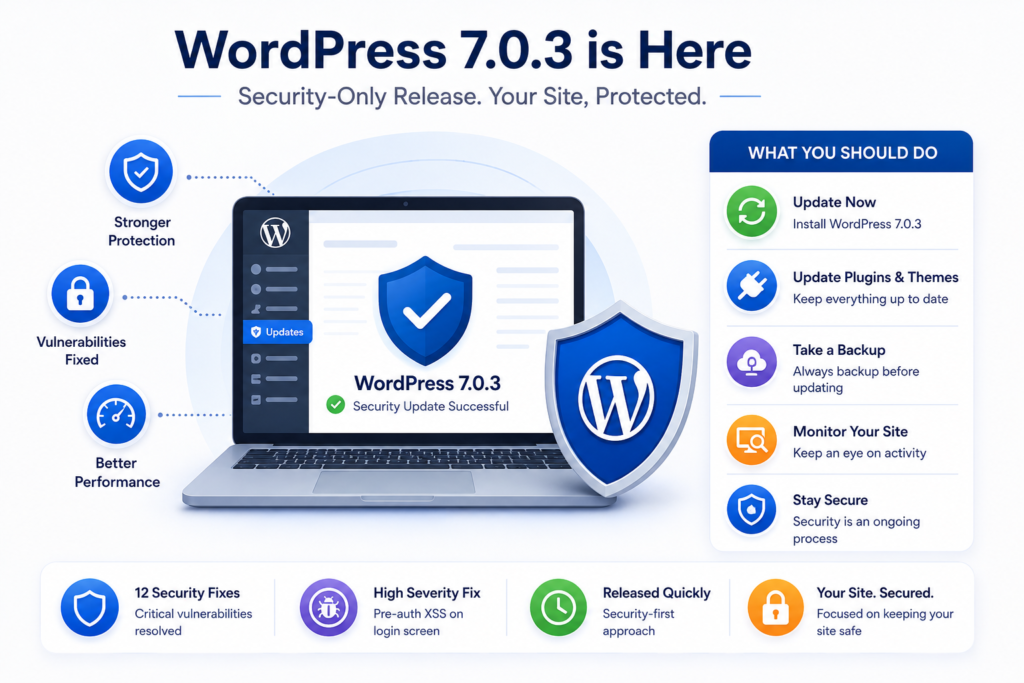
This is the part most guides skip, and it’s exactly why people get burned. Before you touch the update button, think: do you actually have a restorable backup, not “a backup exists somewhere,” but one you’ve confirmed you can restore from? What’s changed on the site recently: plugin updates, theme edits, snippets someone added, that could interact badly with a core update? If something breaks, how fast can you roll it back: hosting snapshots, WP-CLI, or a manual copy of /wp-content plus a database export? And who’s actually going to notice if something goes wrong? If you don’t have uptime monitoring set up, that job falls to you by default, which isn’t a great place to be.
If you can’t answer those quickly, stop and sort them out first.
What to Check Once You’ve Updated
Give yourself fifteen to thirty minutes for a quick sweep after 7.0.3 is live. It’s not a full audit, but it’ll catch the usual suspects.
Confirm the version actually took hold; check Dashboard → Updates and the footer in wp-admin. Look through user accounts for anything unfamiliar, especially admin roles you don’t remember creating. If the site was behind on updates for a while, rotate credentials across the board: admin passwords, hosting or SFTP logins, and the database user if that’s practical for your setup. Check /files/ for recently modified PHP files; that folder is a favorite hiding spot for injected code, since most people never think to look there.
And if you keep logs, scan them for spikes in requests to /wp-login.php or odd query strings hitting admin pages.
The Mistakes Almost Everyone Makes
Updating core and leaving everything else outdated is a common one; it’s basically locking the front door while every window stays open. Once core’s done, move straight to plugins and themes; if anything conflicts, you’ll find out right away instead of months down the line.
Skipping staging is another because if your site has custom theme code, must-use plugins, or a pile of snippets, you need somewhere to test changes before they go live.
And don’t assume auto-updates are working just because you enabled them once. They fail silently sometimes: permission issues, disk space, quirky hosting setups. A boring monthly reminder to actually check your running version catches this before it becomes a real issue.
Wrapping Up
Updating to WordPress 7.0.3 isn’t exciting work, but it’s the kind of unglamorous task that quietly saves you from a much worse weekend down the line. Twelve vulnerabilities patched, one of them a high-severity pre-authentication XSS bug on the login screen- that’s not something to leave sitting at the bottom of a to-do list.
If there’s one takeaway here, it’s that updates work better as a habit than as a scramble. Confirm your backups, run the update, check the workflows that actually matter to your site, and keep the official WordPress documentation handy for anything version-specific you need to double-check later.
Boring, predictable patching is genuinely the goal here. Make it routine, and this whole category of problem mostly stops being something you have to think about.
Frequently Asked Questions
Yes, it went live on August 6, 2026, as a security-only release covering 12 vulnerabilities in WordPress core, one of them High severity.
No, you’re covered. WordPress backported the relevant fixes down through every branch still eligible for security support: 6.4.9, 6.3.9, and further back from there. You don’t need to jump to a full new major version to be patched, but keep in mind only 7.0.3 will keep getting future security fixes going forward.
Not really, no. The platform itself stays current as long as releases like this one keep coming; the gap is usually between WordPress core and a specific installation that hasn’t been maintained. A site running two-year-old core with a stack of abandoned plugins is the actual risk, not WordPress as a project.
That’s a reasonable worry, and there’s a simple way around it: spin up a staging site, run the update there first, test the handful of things that actually matter to your business (login, checkout, main forms), then push it live during a quiet hour and keep an eye on things for a bit afterward. If staging isn’t an option for you, your live site is functionally your test environment, which is a riskier spot to be in than most people realize.


Comments