

Nobody likes waiting for a slow website to load. When visitors click a link to your page, they expect immediate access to your content. If your site takes too long to appear, those visitors will simply leave and find their answers elsewhere. This behavior directly impacts your bounce rate, costing you valuable traffic and potential revenue.
Search engines also care deeply about performance. Google uses page speed as a primary ranking factor for both mobile and desktop searches. A sluggish website signals a poor user experience, which can push your pages down in the search results. Fast websites, on the other hand, are rewarded with better visibility and higher search placements.
Improving your load times might seem highly technical, but you do not need to be a developer to make significant improvements. There are many straightforward strategies you can apply right now to dramatically reduce your loading times. By following a few best practices, you can create a snappy, responsive experience that keeps visitors engaged and search engines happy.
Upgrade Your Web Hosting Plan
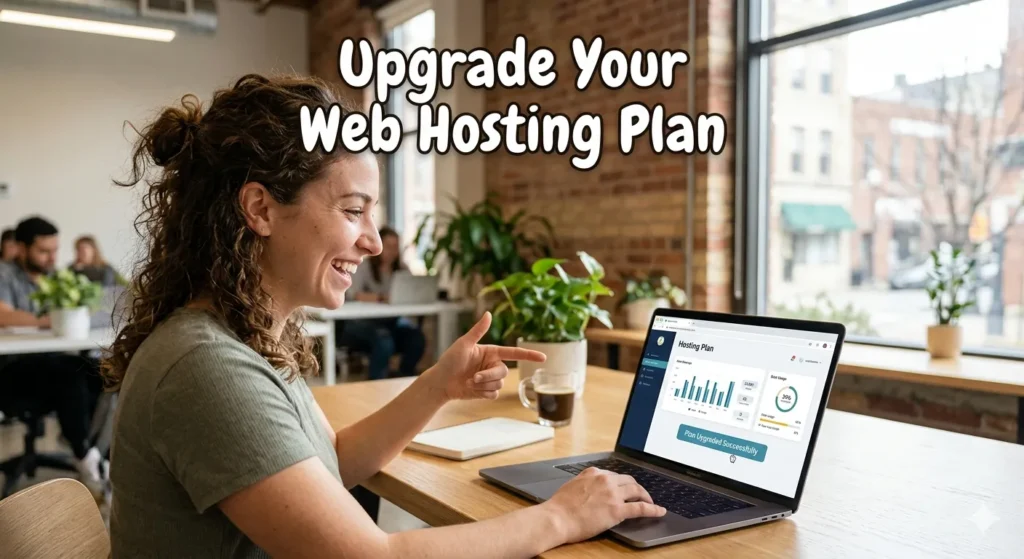
Your web host is the foundation of your website’s performance. You can apply every optimization trick available, but if your server is slow, your website will remain slow. Many site owners start with shared hosting because it is affordable. However, shared hosting places your site on a server with hundreds of other websites, forcing you to compete for limited resources.
Consider switching to a managed WordPress hosting provider. These specialized hosts configure their servers specifically for WordPress environments. They handle server-level caching, automatic backups, and security updates. Upgrading your host is often the single most effective way to cut down your loading times.
Choose a Lightweight Theme
WordPress themes control the visual layout of your site, but they also carry a lot of underlying code. Multipurpose themes often come packed with sliders, complex animations, and dozens of pre-built layouts. All these extra features add weight to your pages, forcing browsers to download massive files before displaying your content.
Opt for a theme built specifically for speed. Lightweight themes prioritize clean code and minimal requests. They give you the essential building blocks to design your site without the unnecessary bloat. You can always add specific features later using well-coded plugins, rather than relying on a heavy theme that slows down every page.

Optimize Your Images
High-resolution images consume a massive amount of bandwidth. If you upload photos straight from your camera or smartphone, you are likely serving files that are several megabytes in size. This forces your visitors’ browsers to work overtime, significantly delaying the rendering of your page.
You need to compress your images before they reach your visitors. Use an image optimization plugin to automatically reduce file sizes upon upload. These tools strip out unnecessary image data without sacrificing visual quality. Additionally, consider converting your standard JPEG and PNG files into WebP format. WebP provides superior compression, making your images much smaller and your pages much faster.

Install a Caching Plugin
Every time a visitor lands on your site, WordPress has to fetch data from your database and assemble the HTML page from scratch. This dynamic process takes time and server resources. If multiple people visit your site at once, the server can quickly become overwhelmed.
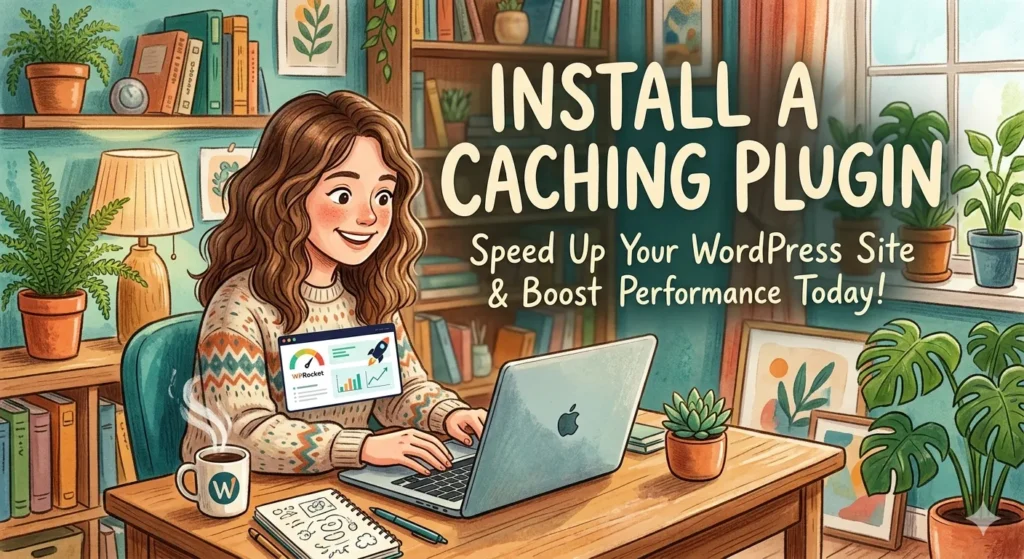
Caching solves this problem by creating a static version of your web pages. When a user requests a page, the server delivers the static file instantly, bypassing the heavy processing phase. Installing a caching plugin is a quick process that yields immediate results. Most popular caching plugins offer simple setup wizards that configure the optimal settings for your specific environment.
Minify CSS, HTML, and JavaScript
The code that builds your website often contains unnecessary characters. Developers use white space, line breaks, and comments to make code easier for humans to read. Browsers, however, do not need these elements to process the files. They simply add extra weight to your pages.
Minification is the process of stripping away all that unnecessary formatting. It compresses your CSS, HTML, and JavaScript files into leaner versions of themselves. Smaller files transfer faster over the network. Many caching plugins include built-in minification settings, allowing you to shrink your code with a single click.

Clean Up Your Database
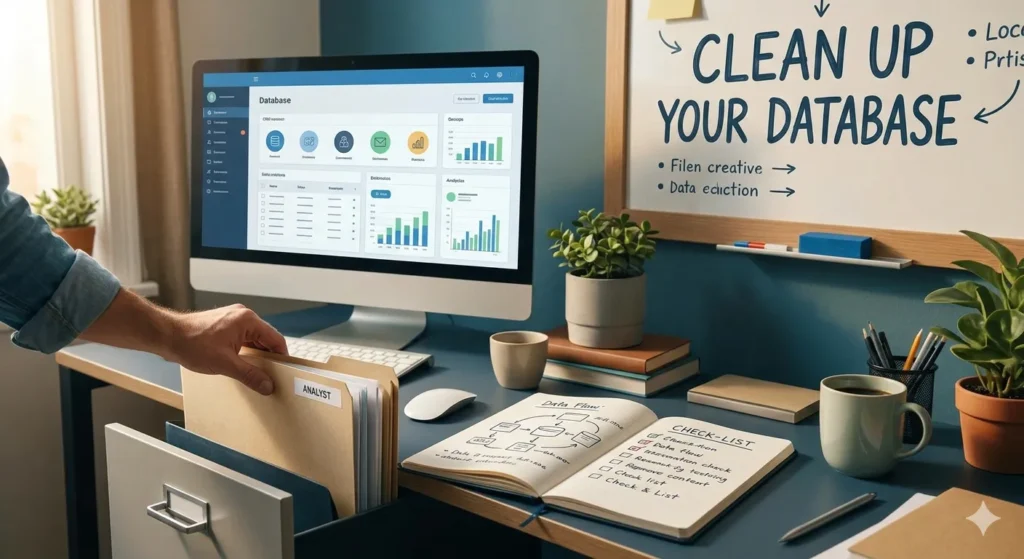
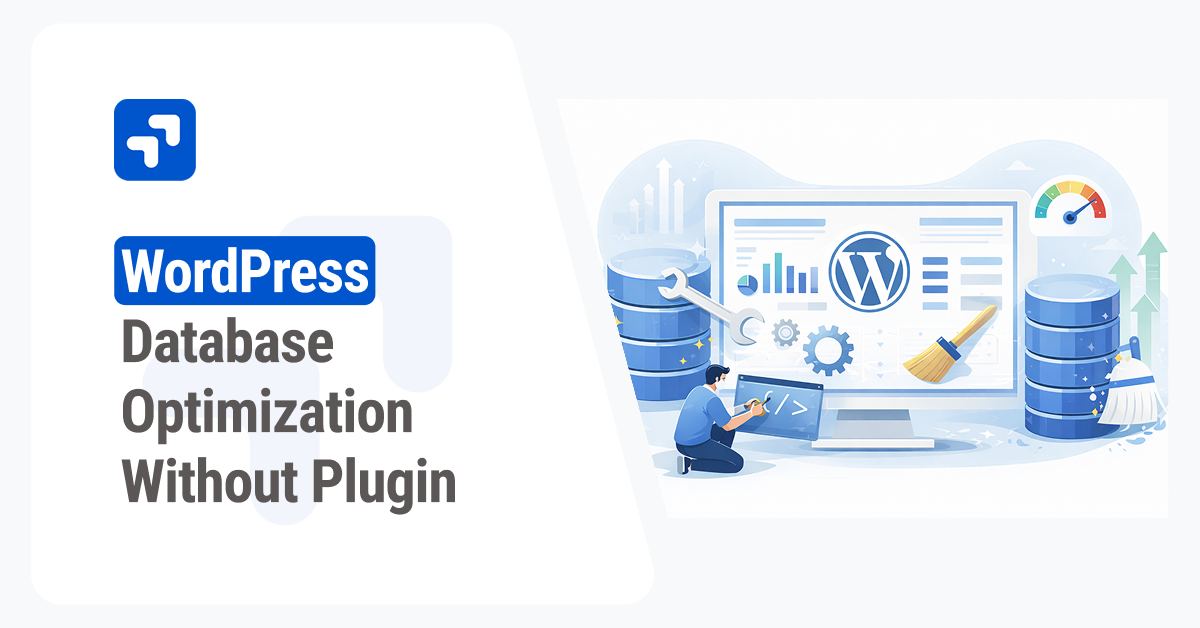
WordPress stores everything in its database. Over time, this database accumulates a massive amount of digital clutter. Every time you save a post, WordPress creates a revision. Trashed comments, deleted posts, and leftover data from uninstalled plugins all sit in your database, making it larger and slower to search.
A bloated database increases the time it takes for your server to find the necessary information to load a page. You should regularly clean your database to keep it running smoothly. There are several optimization plugins available that will clear out old revisions, empty your spam folders, and optimize your database tables automatically.
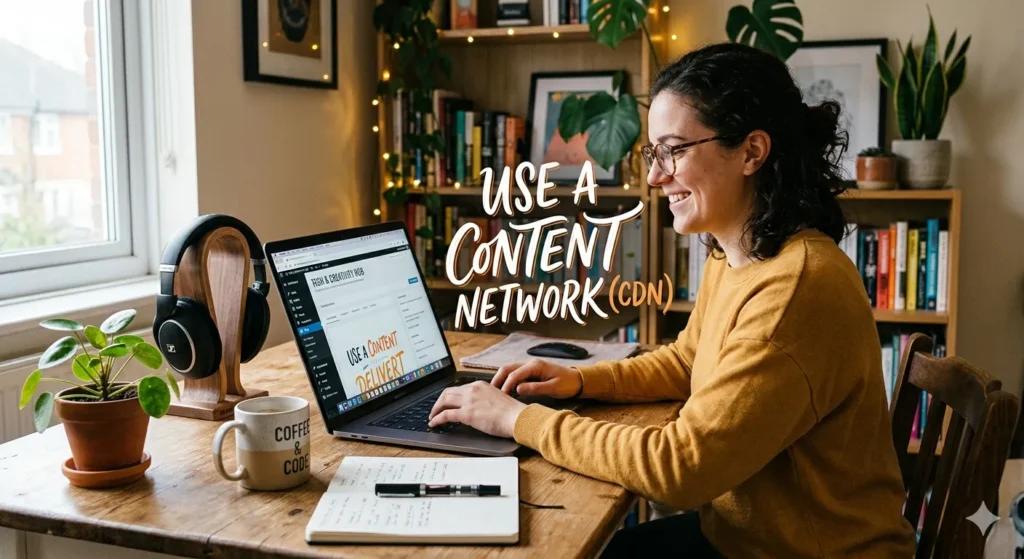
Use a Content Delivery Network (CDN)
The physical distance between your server and your visitors affects load times. If your website is hosted on a server in New York, a visitor from London will experience a slight delay as the data travels across the ocean. A Content Delivery Network (CDN) eliminates this geographic latency.
A CDN is a network of servers distributed around the globe. When you activate a CDN, it stores copies of your static files (like images, CSS, and JavaScript) on all of its network nodes. When someone visits your site, the CDN delivers these files from the server physically closest to them. This drastically cuts down transit time and speeds up the delivery of your content.
Limit External HTTP Requests
Many websites rely on third-party services to function. Google Analytics, custom fonts, social media sharing buttons, and embedded videos all require your site to make external HTTP requests. Your website has to reach out to another server, wait for a response, and then load the asset.
Too many external requests will cause severe bottlenecks. Evaluate every third-party script running on your site. Ask yourself if each one is absolutely necessary. Try hosting fonts locally on your own server instead of pulling them from external libraries. The fewer requests your site has to make to outside servers, the faster it will load.
Keep WordPress Updated
The core WordPress software, along with your themes and plugins, is constantly being updated by developers. While these updates frequently patch security vulnerabilities, they also introduce performance improvements. Developers regularly find ways to make their code execute faster and more efficiently.
Running outdated software prevents you from taking advantage of these speed enhancements. Make it a habit to check for updates regularly. Delete any themes or plugins that you are no longer using, as they simply take up space and pose security risks. Keeping your ecosystem clean and updated ensures your site runs on the most optimized code available.
Visit: WordPress Speed Optimization


Comments