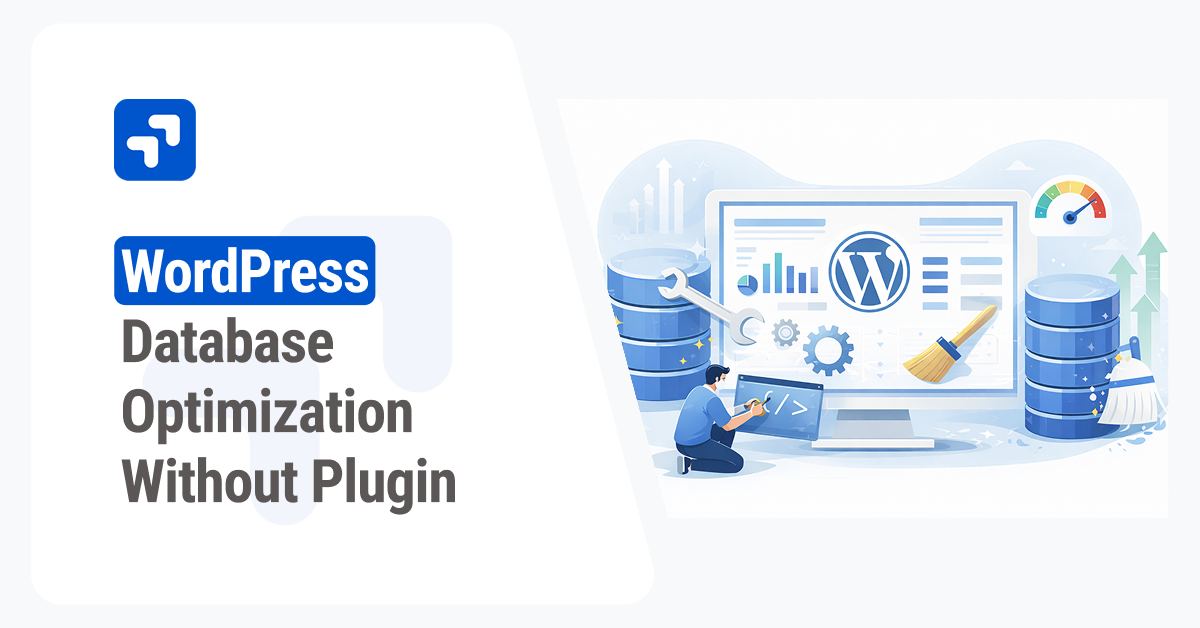
Your WordPress database is the brain of your website. It stores everything from your blog posts and pages to your comments, settings, and user information. Over time, this database collects a lot of unnecessary data. Every time you save a draft, delete a comment, or install a new theme, your database grows a little bit larger.
A bloated database slows down your website. When a visitor loads a page, your server has to dig through thousands of rows of data to find the right information. If your database is full of junk, this process takes much longer. Slow load times frustrate visitors and can even hurt your search engine rankings.
Many website owners rely on plugins to clean up this mess. Plugins are convenient, but they also add their own weight to your site. Adding another plugin to solve a bloat problem is sometimes counterproductive. Furthermore, poorly coded optimization plugins can break your site or create security vulnerabilities.
Learning how to perform a WordPress database optimization without a plugin gives you complete control over your site’s performance. You can target specific areas of waste, keep your plugin count low, and understand exactly what is happening behind the scenes. This guide will walk you through the manual optimization process step by step using phpMyAdmin.
Why skip the optimization plugins?
Plugins are the easiest way to add functionality to WordPress. You click install, activate, and let the software do the work. However, relying on plugins for database maintenance has a few distinct disadvantages.
First, every plugin you install adds code to your website. This code takes up server resources and can potentially slow down your site’s loading speed. If your goal is to speed up your website by cleaning the database, adding more code defeats the purpose.
Second, security is a major concern. Plugins are a common entry point for hackers. The fewer plugins you have installed, the smaller your website’s attack surface becomes.
Finally, manual optimization gives you precision. Optimization plugins often run automated sweeps that might delete data you actually wanted to keep, or they might miss hidden bloat created by uninstalled tools. By running your own SQL queries, you know exactly what is being removed from your server.
Always back up your website first
Before you make any changes to your database, you must create a complete backup. Manually deleting data is a permanent action. If you run the wrong SQL query or delete the wrong table, you can easily break your entire website.
A backup acts as your safety net. If something goes wrong, you can simply restore the database to its previous state and try again.
You can back up your database through your web hosting control panel. Most modern hosts provide a simple backup tool inside cPanel or their custom dashboard. Look for an option labeled “Backup Wizard” or “phpMyAdmin Export.” Download the .sql file to your computer and keep it safe until you finish the optimization process.
Accessing phpMyAdmin
To clean your database manually, you need to use a database management tool. The most popular tool provided by web hosts is phpMyAdmin. It provides a visual interface for interacting with your MySQL databases.
Log into your web hosting account and navigate to your control panel. Look for the “Databases” section and click on the “phpMyAdmin” icon.
Once phpMyAdmin opens, look at the left-hand sidebar. You will see a list of databases associated with your hosting account. Click on the database that corresponds to your WordPress website. If you only have one website, there will likely be only one main database listed.
Clicking the database name will reveal a list of tables. By default, WordPress tables begin with the wp_ prefix. You might see tables like wp_posts, wp_comments, and wp_options. Now you are ready to start running SQL queries to clean up the bloat.
6 Ways to Optimize Your WordPress Database Manually
To run the commands listed below, click on the “SQL” tab located at the top of the phpMyAdmin screen. You will see a blank text box where you can paste the queries. After pasting a query, click the “Go” button located at the bottom right of the screen to execute it.
Note: If you changed your database prefix during the WordPress installation from the default wp_ to something else (like mysite_), you will need to update the queries below to match your specific prefix.
1. Delete post revisions
Every time you save or update a post, WordPress stores a copy of it as a revision. This is a helpful feature if you make a mistake and need to restore an older version of your writing. However, if you have a blog with hundreds of articles, you could easily have thousands of unnecessary revisions clogging up your wp_posts table.
To delete all existing post revisions from your database, run the following SQL query:
DELETE FROM wp_posts WHERE post_type = "revision";
This command searches the posts table and permanently removes any row marked as a revision.
2. Clear out auto-drafts and trashed posts
As you write a new post, WordPress automatically saves your progress as an “auto-draft.” Similarly, when you delete a post, it goes into a trash folder where it sits for 30 days before being permanently deleted.
You can instantly clear out these auto-drafts and trashed posts to free up space. Paste this query into the SQL tab:
DELETE FROM wp_posts WHERE post_status = "trash" OR post_status = "auto-draft";
Executing this command instantly empties your WordPress trash bin and removes any lingering background drafts.
3. Remove spam and trashed comments
If you allow comments on your website, you are likely familiar with spam. Even if you use an anti-spam tool, those blocked comments still take up space in your database until they are permanently deleted. The same goes for comments you manually move to the trash.
You can wipe out all spam and trashed comments in one go using this query:
DELETE FROM wp_comments WHERE comment_approved = 'trash' OR comment_approved = 'spam';
This command targets the wp_comments table and removes anything that is not an active, approved comment.
4. Clear expired transients
WordPress uses transients to temporarily store cached data in your database. This helps speed up your site by remembering things like social media share counts or plugin notifications. Transients are designed to expire and delete themselves after a certain amount of time.
Unfortunately, expired transients frequently get stuck and fail to delete properly. This leads to massive bloat in your wp_options table.
To safely clear out expired transient data, run this SQL command:
DELETE FROM wp_options WHERE option_name LIKE '\_transient\_%' OR option_name LIKE '\_site\_transient\_%';
Removing these rows will not harm your site. WordPress will simply regenerate any necessary transient data the next time it needs it.
5. Remove unused tags and categories
Content organization is important, but over time, you might create tags and categories that you never actually assign to any posts. These empty taxonomy terms sit in your database doing absolutely nothing.
Cleaning up these empty tags requires three specific queries to ensure all relationships are properly removed:
DELETE FROM wp_terms WHERE term_id IN (SELECT term_id FROM wp_term_taxonomy WHERE count = 0);
DELETE FROM wp_term_taxonomy WHERE term_id not IN (SELECT term_id FROM wp_terms);
DELETE FROM wp_term_relationships WHERE term_taxonomy_id not IN (SELECT term_taxonomy_id FROM wp_term_taxonomy);
Run these three queries one after the other. They will identify any category or tag with zero posts assigned to it and completely remove the data from your tables.
6. Optimize database tables
After you delete thousands of rows of data using the queries above, your database tables will have “holes” in them. This is known as fragmentation. To reclaim the physical storage space and improve database performance, you need to optimize the tables themselves.
You do not need an SQL query for this step. phpMyAdmin has a built-in optimization tool.
Click on your database name in the left sidebar to view all your tables. Scroll to the bottom of the table list and check the box that says “Check all.” Next to that box, there is a drop-down menu labeled “With selected.” Click the drop-down and choose “Optimize table.”
phpMyAdmin will quickly defragment your tables, reorganizing the data so your server can read it much faster.
Keeping your database clean automatically
Running SQL queries every week can get tedious. Thankfully, you can configure WordPress to automatically limit the amount of junk it saves in the first place. By adding a few lines of code to your wp-config.php file, you can prevent database bloat before it happens.
You can access your wp-config.php file using an FTP client or your web host’s File Manager. Look for the file in the root directory of your WordPress installation.
Limit post revisions
You can tell WordPress exactly how many revisions to save for each post. Keeping three to five revisions is usually plenty. Add this line near the top of your wp-config.php file:
define( 'WP_POST_REVISIONS', 5 );
Disable post revisions entirely
If you prefer to write your drafts in a separate word processor and never use the WordPress revision feature, you can turn it off completely:
define( 'WP_POST_REVISIONS', false );
Change the trash emptying schedule
By default, WordPress keeps trashed posts and comments for 30 days. You can force the system to empty the trash more frequently. To change the schedule to 7 days, add this line:
define( 'EMPTY_TRASH_DAYS', 7 );
Frequently Asked Questions (FAQ)
Is it safe to optimize the WordPress database manually?
Yes, it is entirely safe as long as you take the necessary precautions. The SQL queries provided in this guide target specific types of temporary or deleted data. However, human error is always a possibility. Creating a complete database backup before running any commands ensures you can always recover your site if you make a mistake.
How often should I optimize my database?
The ideal frequency depends on how active your website is. If you publish multiple articles a day and receive dozens of comments, you might want to optimize your database once a month. For smaller websites or static business pages, optimizing two or three times a year is sufficient.
Will database optimization speed up my website?
Yes. A smaller, well-organized database allows your server to process requests much faster. While database optimization is just one piece of the performance puzzle, it directly improves backend processing times. Visitors will experience faster page loads, and your WordPress admin dashboard will feel much more responsive.
Do I still need a caching plugin?
Yes. Database optimization and caching serve two different purposes. Optimizing the database organizes your backend data. Caching saves static versions of your web pages so your server does not have to query the database for every single visitor. Using both strategies together provides the best possible website performance.
Keep Your Site Running Fast
Learning how to run a WordPress database optimization without a plugin is an excellent way to take ownership of your website’s performance. By periodically clearing out old revisions, deleting spam, and optimizing your tables in phpMyAdmin, you ensure your server resources are used efficiently.
Take a few minutes today to log into your web host, back up your data, and run these simple SQL queries. Your visitors will appreciate the faster load times, and you will enjoy a much cleaner, more secure website environment.